Getting started
Install Glyfen & first launch
Glyfen is distributed through F-Droid, built from its open-source code. Installing takes a minute, and the app starts completely empty — it reads nothing until you tell it which folders to look at.
1. Install from F-Droid
Get Glyfen on F-Droid. You can use the F-Droid app or install the APK from the website. Because the app requests no internet access, it will never ask to go online after installation.
2. Open Glyfen
On first launch Glyfen opens on the Scan tab with an empty state: “No folders yet.” This is expected — Glyfen has not looked at any of your photos and will not until you grant access to specific folders.
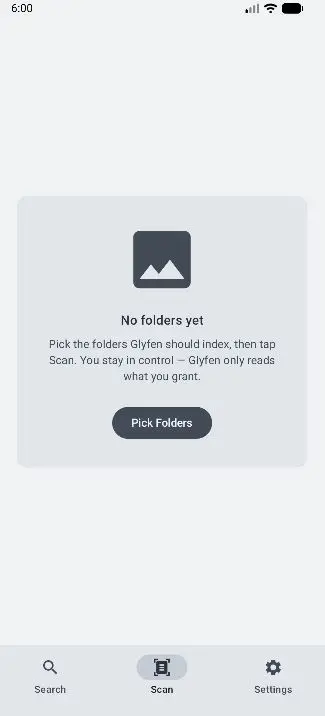
3. Tap “Pick Folders”
Tap the Pick Folders button to move on to choosing which photo folders Glyfen may read. The next page walks through adding and managing folders and granting access.