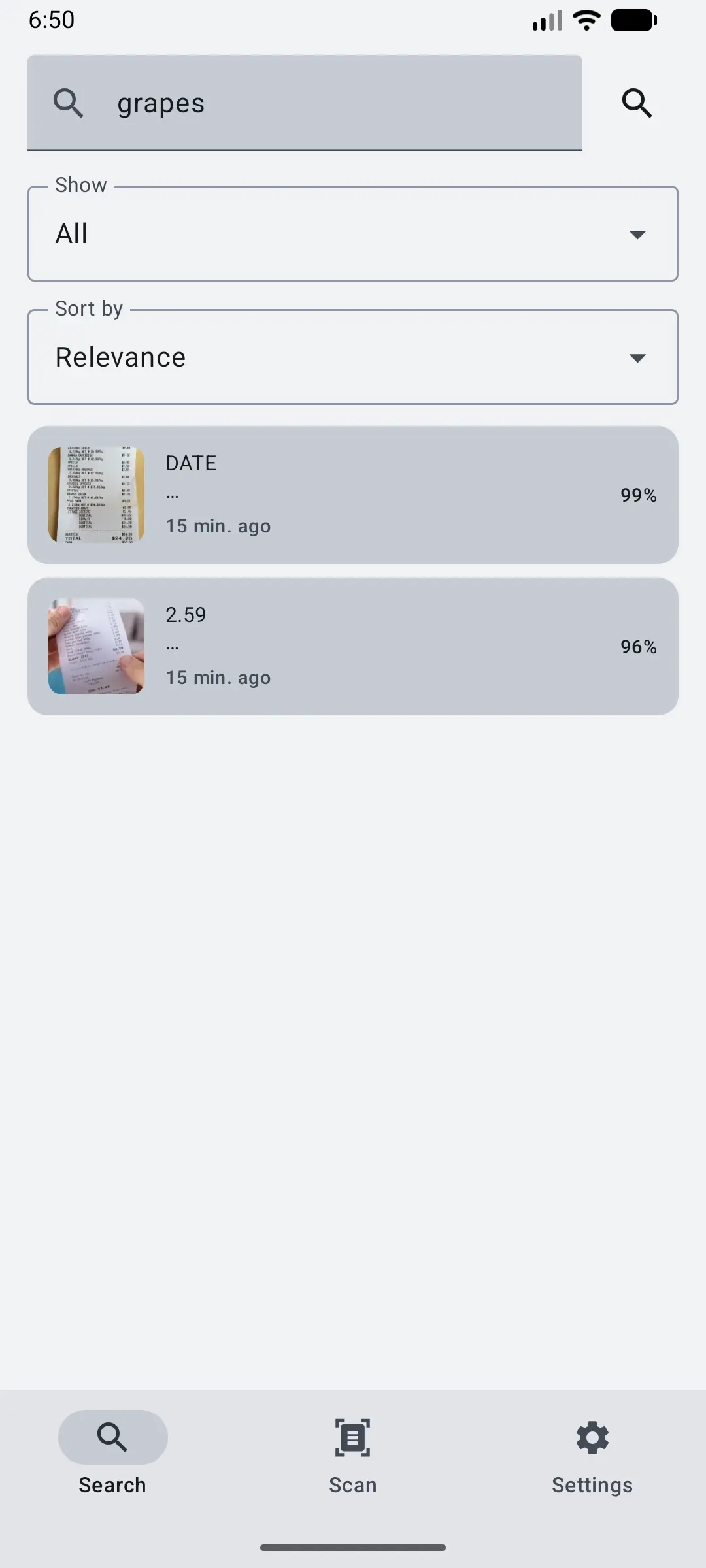
Core workflow
Search your text
Once images are scanned, the Search tab turns your photo library into a text index. Type what you remember and Glyfen finds the images that contain it.
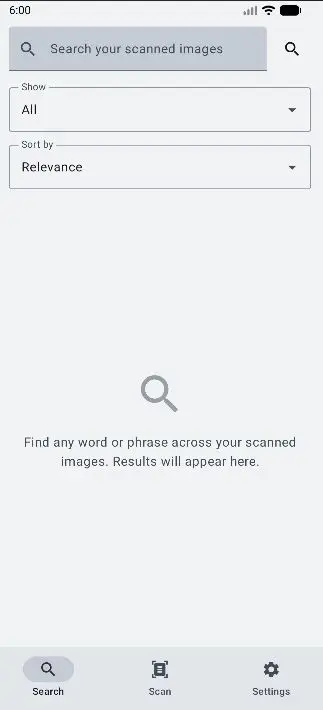
Type any word or phrase
Open the Search tab. The box reads “Search your scanned images.” Enter a word or phrase — a store name, a total on a receipt, a phrase from a screenshot — and results appear as you type. Before you search, Glyfen reminds you: “Find any word or phrase across your scanned images.”
Filter and sort results
Two controls refine results:
- Show — filter which results are included (for example, All).
- Sort by — order results, such as by Relevance so the best matches come first.
Each result shows a thumbnail, a snippet of the matched text, when it was scanned, and a confidence percentage — so you can spot the right image at a glance.