Reference
Settings explained
The Settings tab groups everything into a few clear sections: Scan Behavior, Storage, Diagnostics, and Support. Here is what each control does.
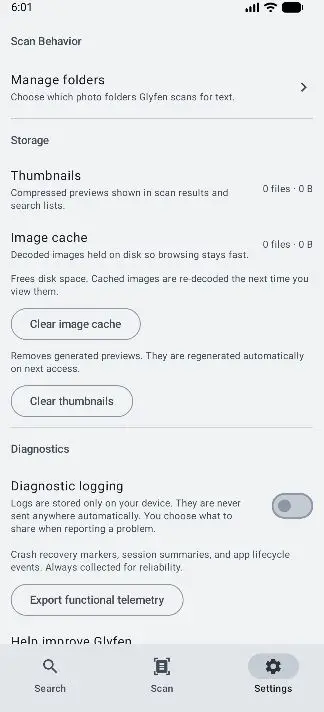
Scan Behavior
Manage folders opens the same screen covered in Add & manage folders — choose which photo folders Glyfen scans for text. This is the main knob that controls what Glyfen can see.
Storage
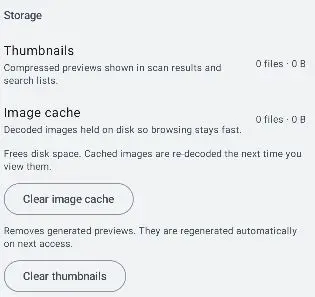
Glyfen keeps two on-device caches so browsing and results stay fast. Both show how much space they use and can be cleared safely.
- Thumbnails — compressed previews shown in scan results and search lists.
- Image cache — decoded images held on disk so browsing stays fast. Cached images are re-decoded next time you view them.
Use Clear image cache and Clear thumbnails to free disk space. Both regenerate automatically on next access, so clearing them never loses data — only temporary files.
Diagnostics & Support
Below Storage are Diagnostics (diagnostic logging, telemetry, and exports) and Support (report a bug). These are entirely opt-in and privacy-preserving — they get their own page: Diagnostics & bug reports.